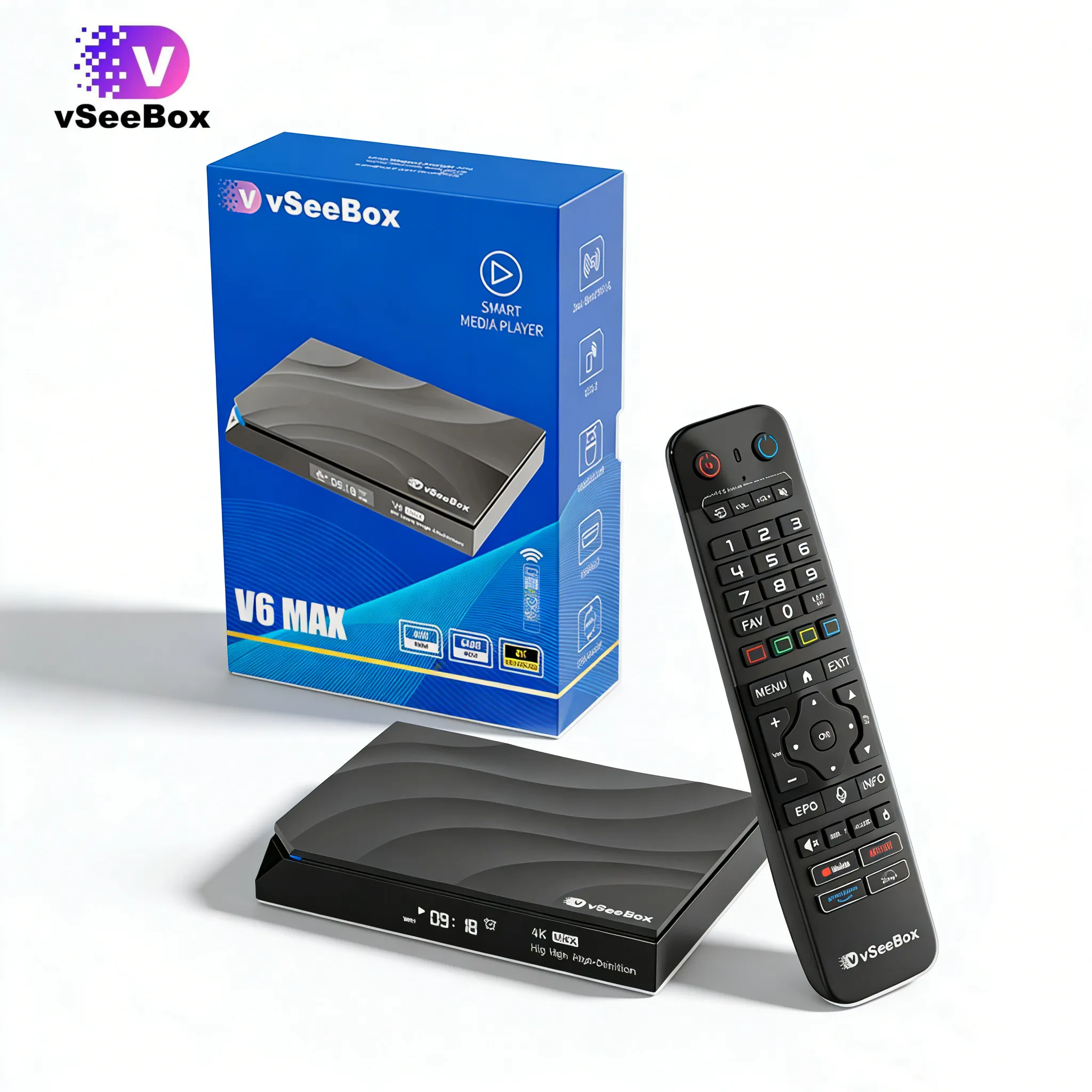
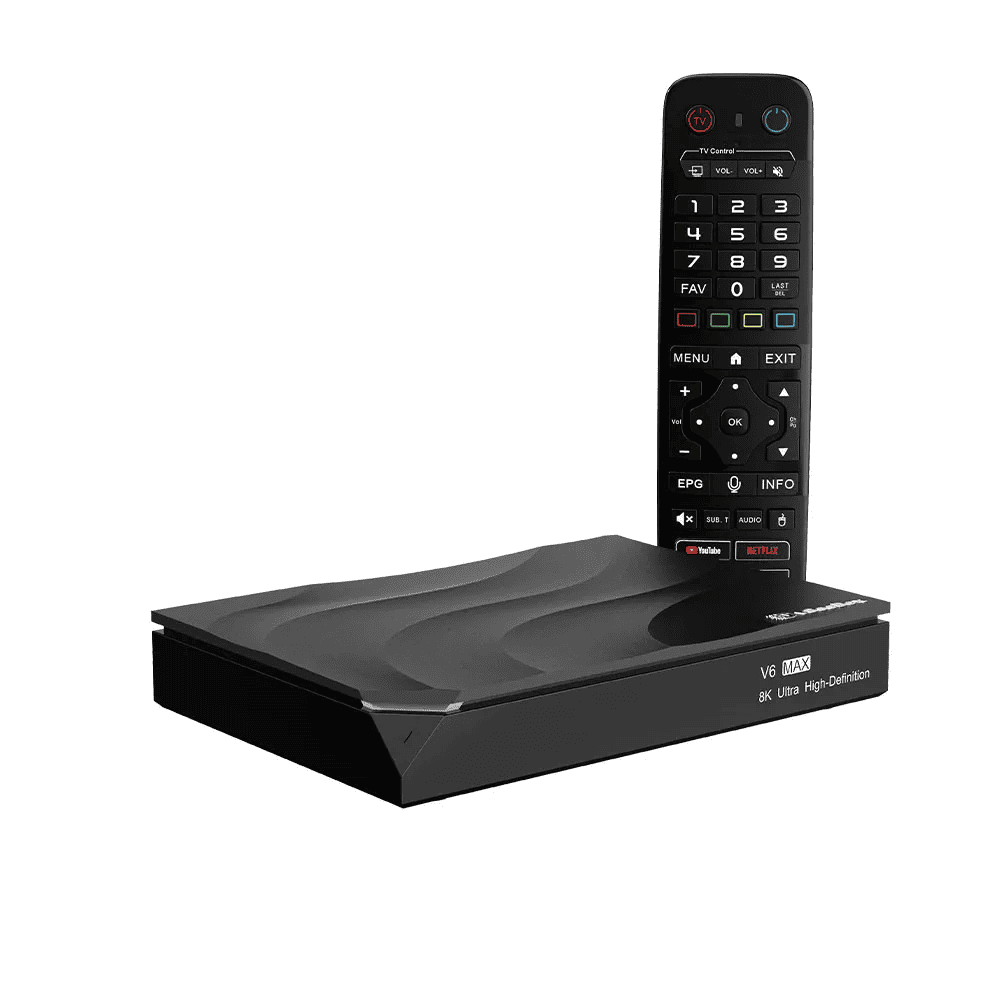
In this 2026 vSeeBox remote setup guide, we will show you how to connect your TV remote to vSeeBox, explain the remote learning function, introduce supported vSeeBox models, and help you troubleshoot common pairing issues.
Whether you are using a vSeeBox V6 Plus, V6 Pro, V6 Max, Elite Ultra or another supported model, this guide will help you complete the setup quickly.
Quick Answer: How to Connect a TV Remote to your vSeeBox?
Step 1: Put Your Remotes in Learning Mode
Place your vSeeBox remote and TV remote close together, with the infrared sensors facing each other.
Step 2: Press the SET Button
Press and hold the SET button on your vSeeBox remote until the indicator light turns on.
Step 3: Copy Commands From Your TV Remote
Press the button you want to program on the vSeeBox remote, then press the matching button on your TV remote.
Common buttons include:
- Power
- Volume Up
- Volume Down
- Mute
Step 4: Test the Remote Connection
After completing the learning process, test the programmed buttons to make sure they work correctly.
vSeeBox Remote Control Guide
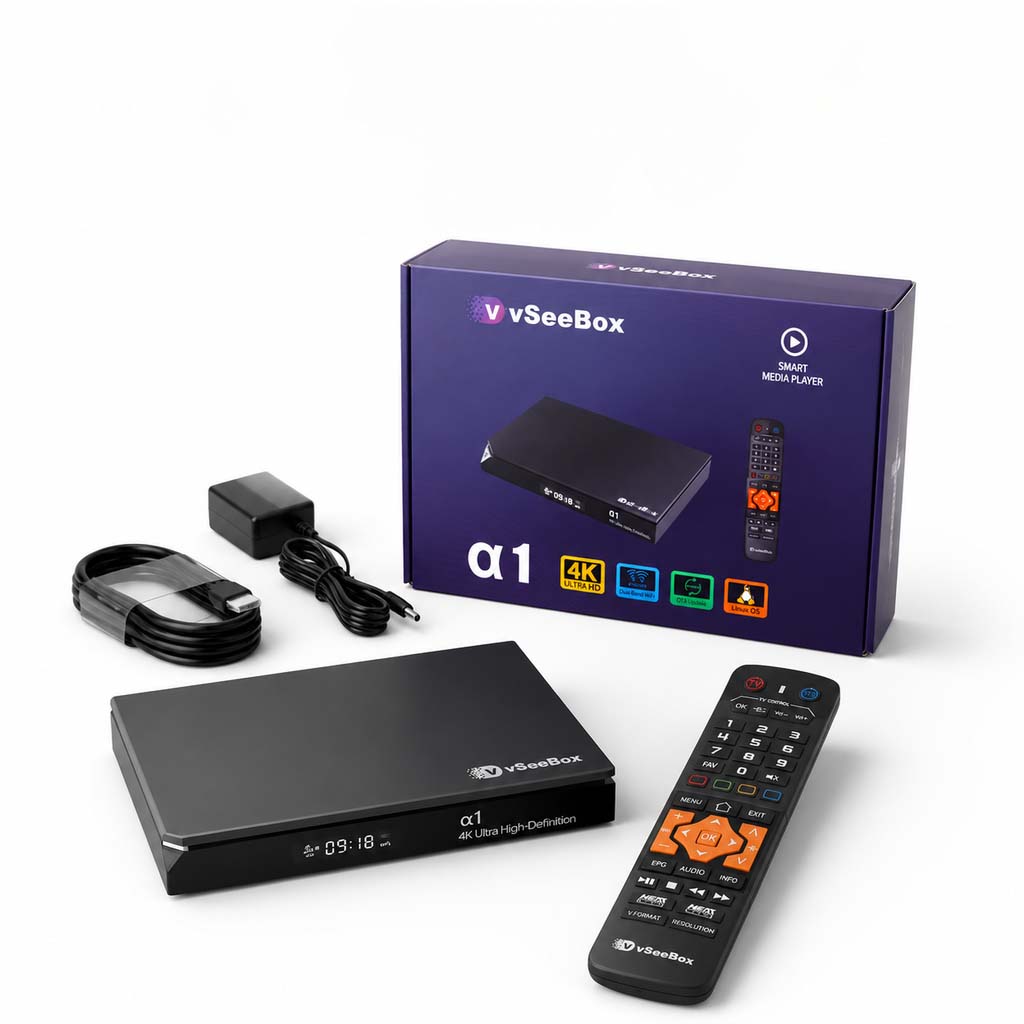
Before starting the setup, it helps to understand the main buttons on your vSeeBox remote.
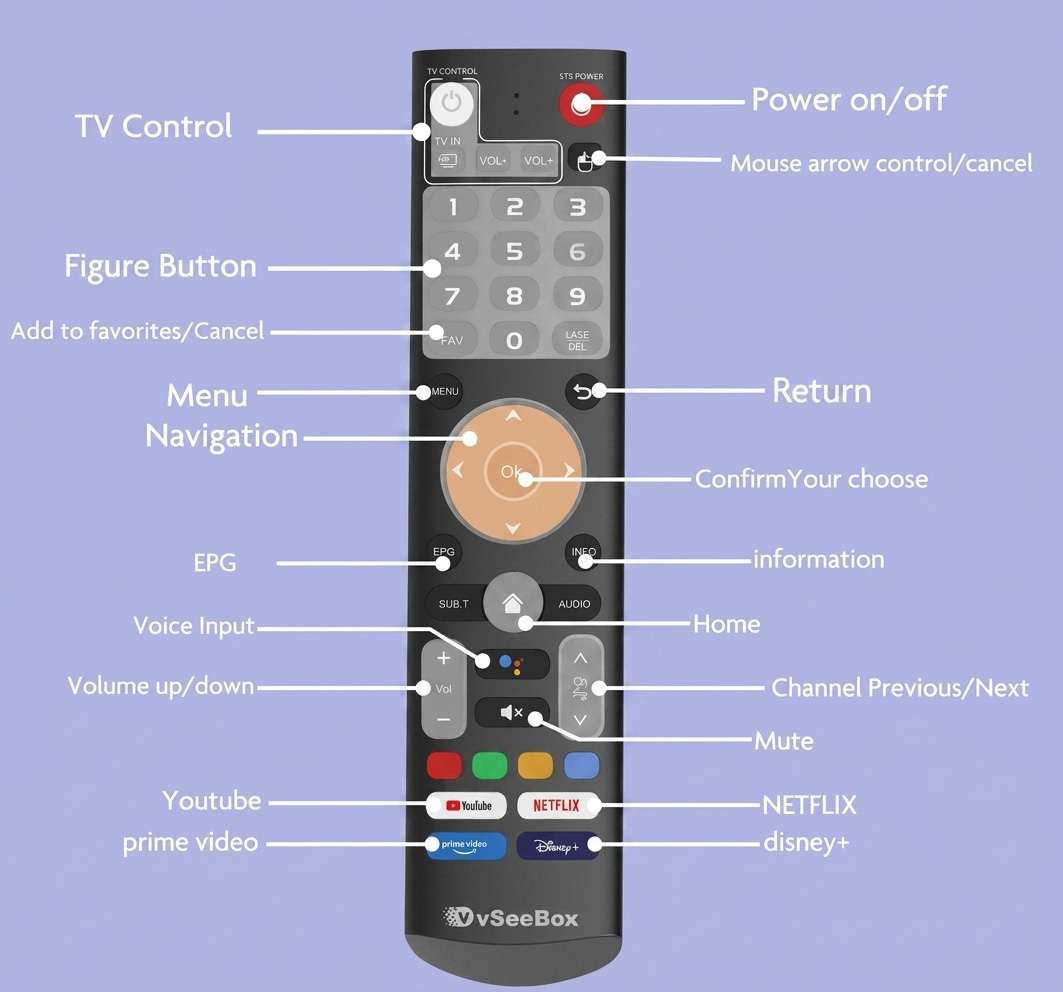
Button explanation table
| Button | Function |
|---|---|
| Power | Turn TV/device on or off |
| Voice | Voice search |
| SET | Remote learning mode |
| Volume | Control TV volume |
Understanding the button layout makes the pairing process easier and helps avoid setup mistakes.
Before You Start
Before connecting your TV remote to vSeeBox, make sure:
- Both remotes have working batteries
- Your TV remote uses infrared (IR) signals
- The two remotes are placed close together during pairing
- Your vSeeBox remote is working normally
A stable setup environment can help prevent pairing failures.
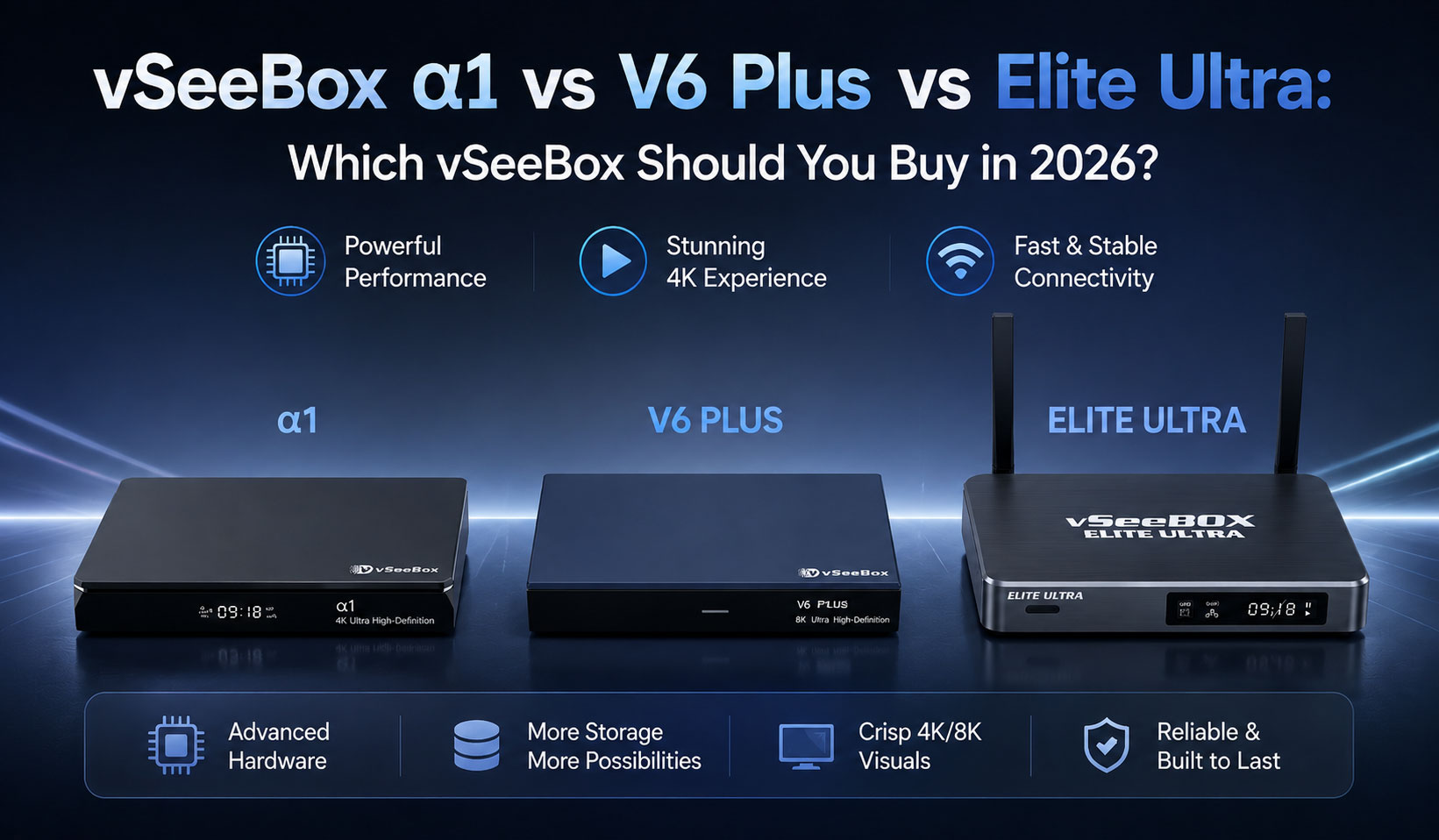
Supported vSeeBox Models & Key Features
Most current vSeeBox models support TV remote learning. However, each model offers different features depending on your needs.
| Model | Remote Learning | Key Features |
|---|---|---|
| vSeeBox V6 Pro | ✅ Supported | Android 14, 4GB RAM, 32GB storage, excellent value |
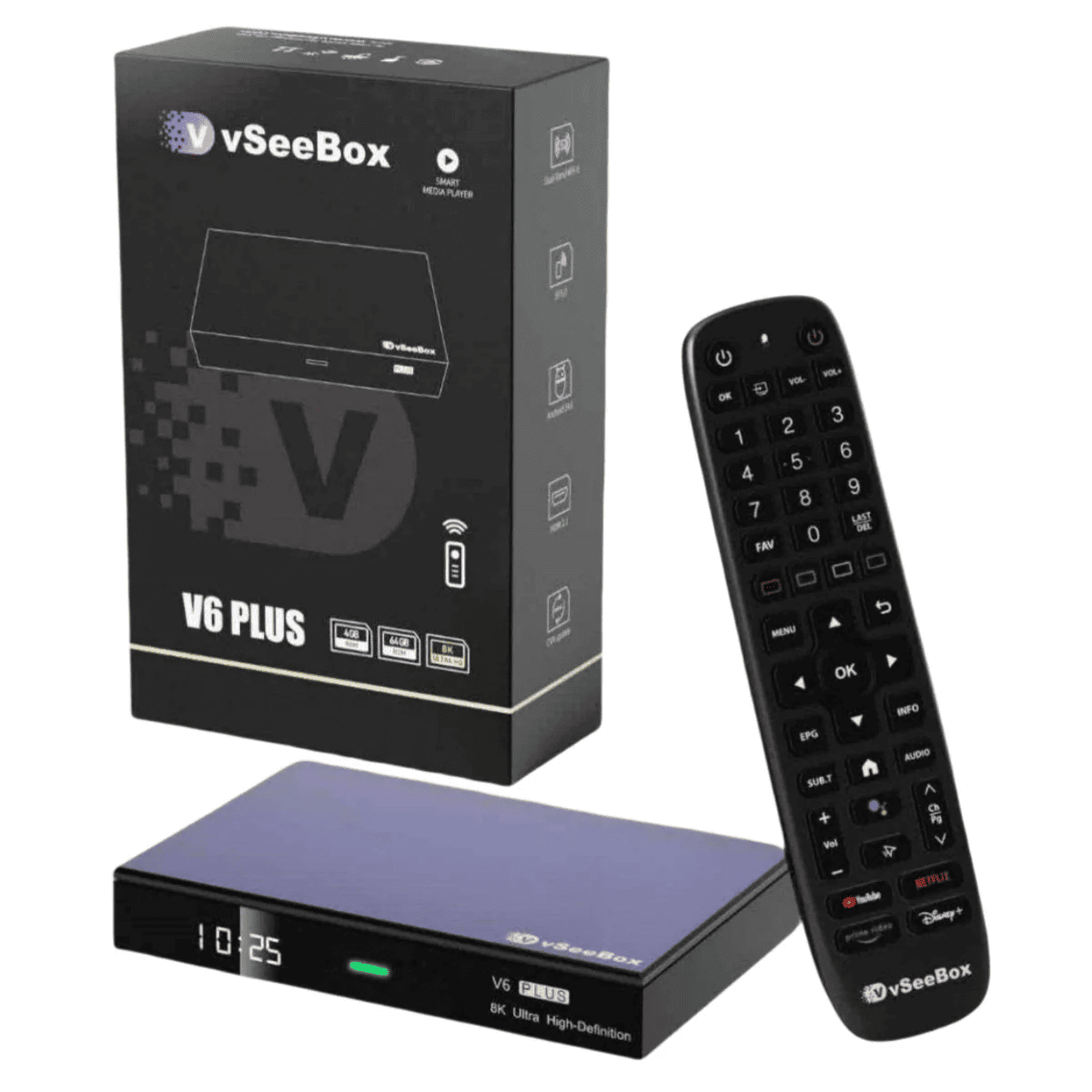
| vSeeBox V6 Plus | ✅ Supported | 64GB storage, split-screen support, backlit voice remote |
| vSeeBox V6 Max | ✅ Supported | 64GB storage, stable everyday performance, reliable connectivity |
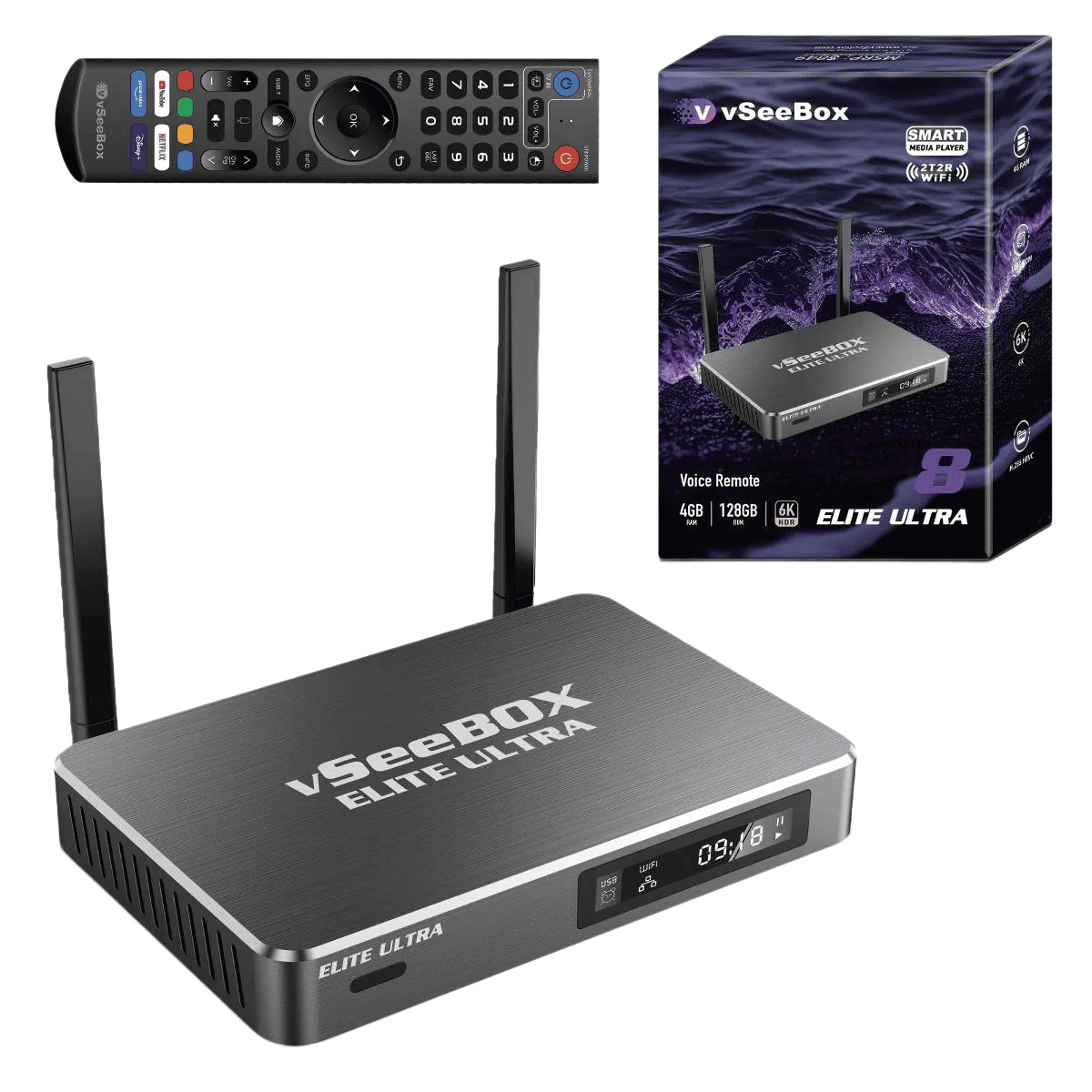
| vSeeBox Elite Ultra | ✅ Supported | Premium hardware and advanced features |
While all supported models allow remote setup, choosing the right vSeeBox depends on your storage needs, preferred features, and daily usage habits.
What Can You Control After Pairing?
After successfully connecting your TV remote with vSeeBox, you can usually control basic TV functions without using two separate remotes.
Common functions include:
- Power on/off
- Volume adjustment
- Mute control
The available functions may vary depending on your TV brand and remote model.
For most users, pairing the remote creates a simpler and more convenient home entertainment setup.
Common Problems When Connecting
The Remote Learning Function Does Not Work
If the vSeeBox remote does not learn commands:
- Check that both remotes have fresh batteries
- Make sure the remotes are facing each other
- Keep the distance between remotes within the recommended range
- Try repeating the learning process
The Power Button Works but Volume Does Not
This is a common situation because different TV brands may use different infrared commands.
Try:
- Repeating the volume learning process
- Checking if your TV remote sends IR signals correctly
- Testing another compatible remote
The TV Remote Cannot Control vSeeBox
Remember that the TV remote learning function is designed to copy selected TV commands.
It does not replace the full vSeeBox remote.
For complete vSeeBox control, continue using the original vSeeBox remote or compatible accessories.
❓Frequently Asked Questions (FAQ)
Can any TV remote work with vSeeBox?
Most infrared (IR) TV remotes are compatible with the vSeeBox learning function. Compatibility may vary depending on the TV brand and remote model.
Does vSeeBox support Bluetooth remote pairing?
The TV remote learning function uses infrared signals. Bluetooth remote pairing is a separate feature used for compatible vSeeBox accessories.
Why is my vSeeBox remote not working after setup?
If your vSeeBox remote is not responding, check the batteries, restart your device, and repeat the learning process. If the issue continues, try resetting the remote connection.
Should I use the original vSeeBox remote or a TV remote?
The original vSeeBox remote provides full device control, while a paired TV remote is mainly useful for convenient functions like Power and Volume.
Does this work with vSeeBox V6 Pro, V6 Plus, and V6 Max?
Yes. The remote learning feature is supported on current vSeeBox models, including the V6 Pro, V6 Plus, and V6 Max.
Final Thoughts
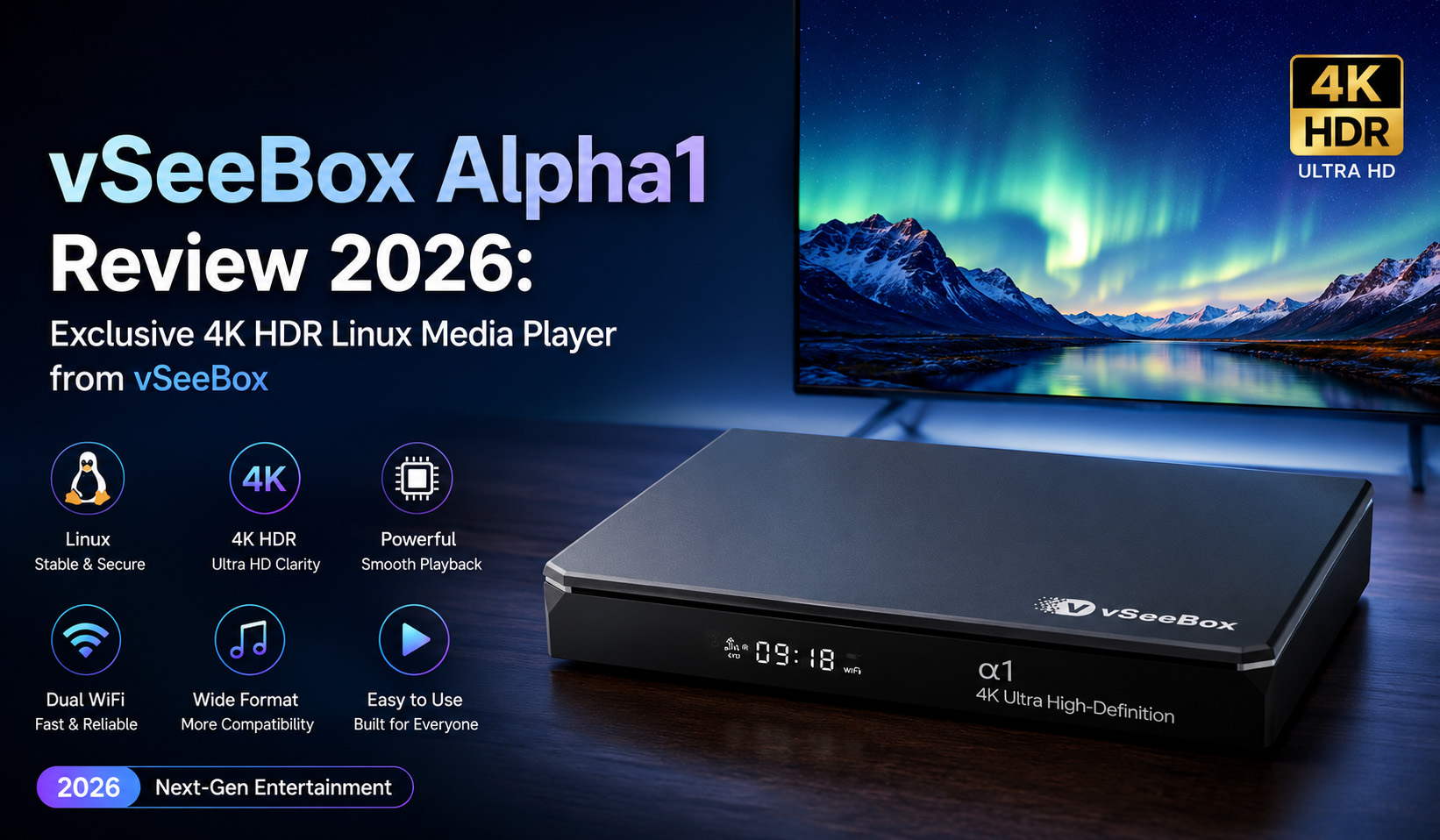
If you are setting up a new vSeeBox Series device, completing the remote configuration is one of the first steps toward getting the best experience from your device.
.jpg?w=2048&h=2048)
-0.jpg?w=2048&h=2048)