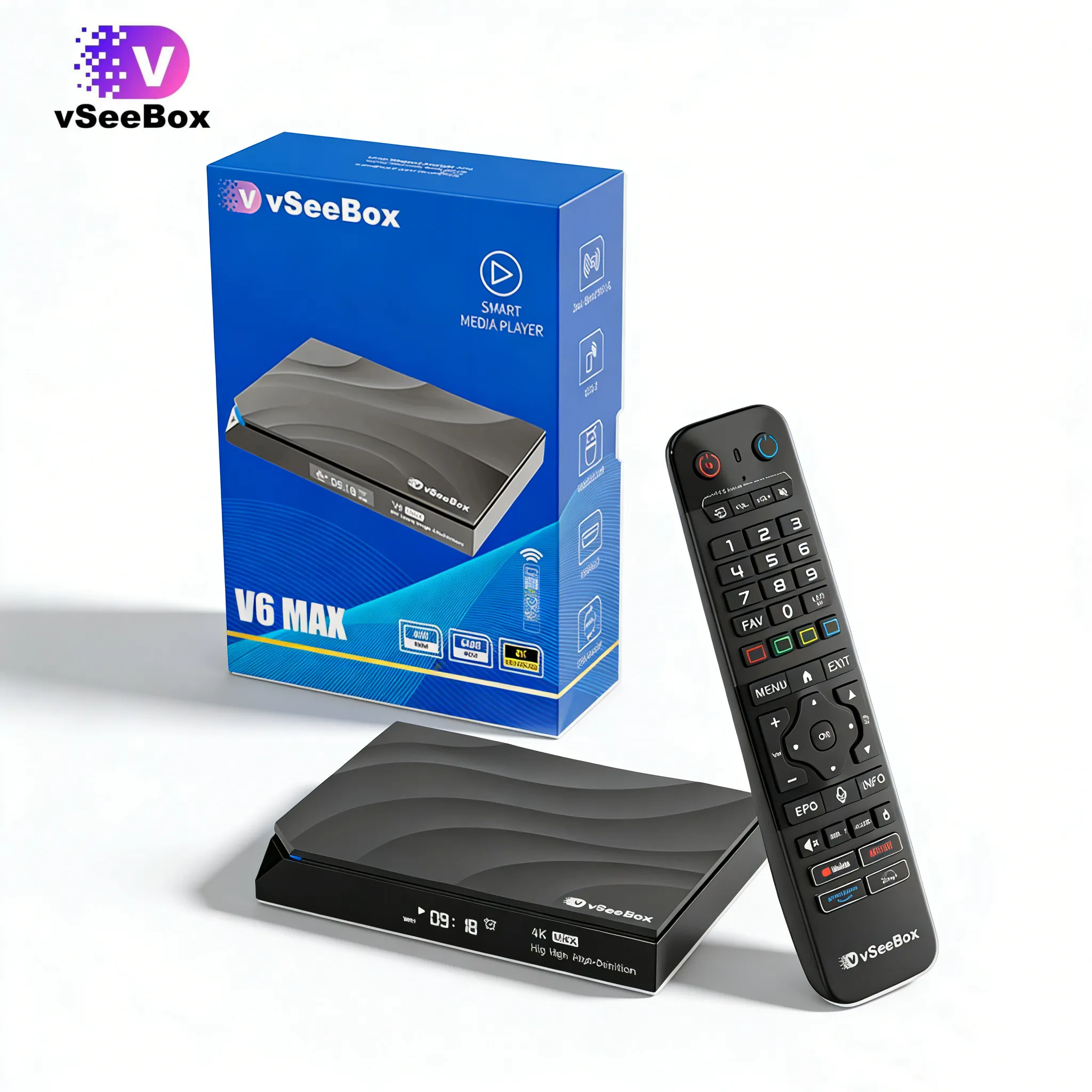
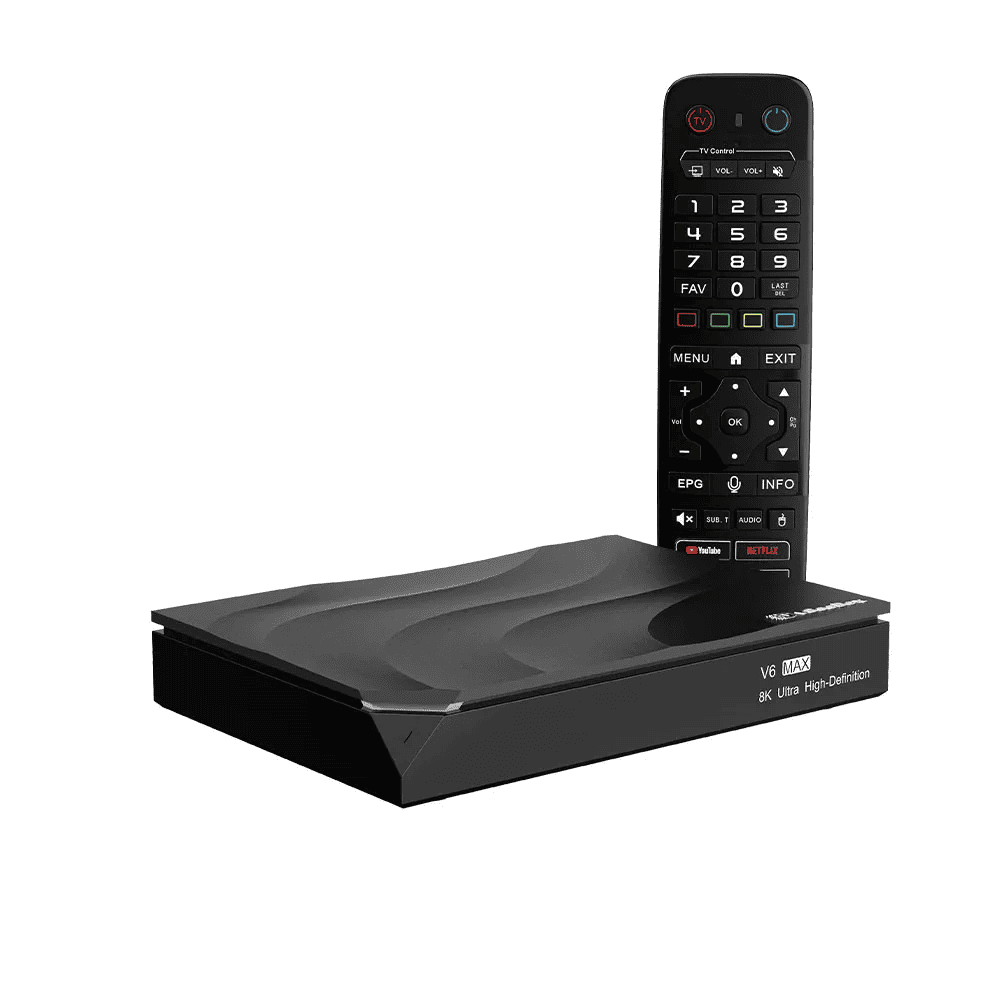
After a firmware update, some users find that their VSeeBox restarts but never moves past the boot logo.
The screen stays frozen.
The system does not load.
Even pressing the reset pinhole on the back seems to do nothing.
This situation is more common after interrupted OTA updates, unstable power connections, or incomplete firmware installation.
Many users assume the box is permanently damaged, but in most cases, the issue can be solved by entering Android Recovery Mode and performing a proper factory reset.
This guide will show you exactly how to recover a VSeeBox stuck on the startup screen and safely restore the system.
If you are still learning how the full system works, you can also read:
This helps users understand how firmware, Android systems, and recovery mode work together.
Why VSeeBox Gets Stuck on the Boot Screen
This problem usually happens after the device downloads a system update and begins installing new firmware.
If the power is interrupted, the installation freezes, or the reboot process fails, the system may stop at the logo screen and never fully start.
Users often try pressing the reset hole quickly and assume it failed, but timing is the most important part of recovery mode.
In real cases, the reset process works best when the button is held before power is connected—not after the box is already frozen.
This small detail solves the problem for many users.
If you are setting up your box for the first time, this guide may also help:
How to Use VSeeBox in 2026 | Complete Setup Guide for First-Time Users
Many startup problems actually begin during incorrect first-time installation.
Preparation Before System Recovery
Before starting the recovery process, make sure your VSeeBox is already connected to a monitor with an HDMI cable so you can clearly see when the boot logo appears and enter recovery mode at the right moment.
Keep the original power adapter nearby, along with a small pin, SIM eject tool, or anything thin enough to press the hidden reset button inside the AV port.
Many users spend several failed attempts simply because they press the wrong opening or use a weak third-party power supply that causes unstable restarts during recovery.
Using the original adapter makes a big difference here.
Power interruptions during system recovery are one of the most common reasons the box gets stuck again, even after a factory reset.
Preparing these small details first saves a lot of unnecessary time and makes the recovery process much smoother.
Many recovery failures happen because users test with unstable third-party power supplies, which causes the device to restart repeatedly during recovery.
This is one of the most overlooked issues.
Step-by-Step VSeeBox System Recovery Guide
Follow these steps carefully.
The reset timing matters more than force.
Step 1: Connect HDMI and Press the Reset Button
First, connect the HDMI cable between your VSeeBox.
Locate the AV port on the back of the box.
Inside the AV interface, there is a hidden reset button.
Use a pin to gently press and hold the reset button.
Do not release it yet.
Many first-time users accidentally press the wrong hole, so make sure you feel the physical button inside the AV port.
Step 2: Connect the Power Supply
While continuing to hold the reset button, connect the power adapter to the box.
Keep holding the reset button.
Do not release too early.
Users who release too soon usually end up back at the frozen boot logo.
Step 3: Release at the First Boot Logo
As soon as the screen shows the first startup logo frame, release the reset button.
Then wait about 20 seconds.
The box should enter Android Recovery Mode.
If the device stays frozen at the logo and recovery mode does not appear, unplug the power completely and repeat the process again.
Most failed attempts happen because the release timing was too early or too late.
This step often takes two or three tries for first-time users.
Step 4: Enter Android Recovery
Once recovery mode appears, you will see the Android system recovery screen.
This confirms the box is not dead—the system is still recoverable.
At this point, use the remote control or connected keyboard to navigate the menu.
Some remotes respond slowly here, which is normal.
Step 5: Select Wipe Data / Factory Reset
In Android Recovery, choose:
Wipe data / factory reset
This will remove damaged system cache and user settings that may be preventing normal startup.
It does not repair hardware issues, but it solves most firmware-related boot loops.
Step 6: Confirm Factory Data Reset
Next, enter:
Wipe all user data
Then select:
Factory data reset
This confirms the full reset process.
Skipping it usually means the problem returns immediately.
Step 7: Wait for Data Clearing to Finish
The system will begin clearing all user data.
Do not unplug power during this stage.
Interrupting this process can create a more serious boot loop and make recovery harder.
This part usually takes only a few minutes.
Patience matters here.
Step 8: Select Reboot System Now
After the reset is complete, the screen will return to Android Recovery.
Select:
Reboot system now
The box will restart automatically.
If the device still pauses during startup, unplug the power once, reconnect it, and allow the system to boot again.
Many users find the second restart completes normally.
5 Real Experience Tips That Save Time
These are the details users usually learn after several failed attempts.
Knowing them first can save a lot of frustration.
1. Most recovery failures happen because of reset timing
Not because the box is broken.
Holding the reset button before connecting power is the key step.
2. Cheap power adapters cause repeated boot loops
Using the original adapter prevents many “fake hardware failures.”
Power stability matters more than most users expect.
3. Recovery mode may take more than one attempt
Many successful recoveries happen on the second or third try.
The first failed attempt does not mean the method is wrong.
4. Do not unplug during data wipe
Interrupting factory reset creates bigger problems than the original boot issue.
Waiting a few extra minutes is always safer.
5. Most boot logo freezes are not hardware damage
Users often assume they need a replacement immediately.
In reality, recovery mode fixes the majority of cases.
This is why experienced users always try system recovery before replacing the box.
Should I replace the box immediately if recovery fails?
Not always.
System recovery should always be tested first before replacing the device.
You can also compare newer models here:
VSeeBox Buying Guide for North American Users in 2026
This helps users decide whether recovery or upgrading is the better long-term choice.
Final Answer
If your VSeeBox is stuck on the boot screen after a firmware update, the device is usually recoverable.
In most cases, entering Android Recovery Mode and performing a factory reset solves the problem.
The most important part is reset timing—not pressing harder, but pressing at the right moment.
Users who follow the correct recovery steps often restore the system without needing repairs or replacement.
The best repair is often not replacing the box—
it is understanding how the system works first.
Written by the vSeeBox team, this article is part of our ongoing effort to provide practical setup guides, viewing tips, and Android entertainment insights for North American users.



.jpg?w=2048&h=2048)

-0.jpg?w=2048&h=2048)