For many first-time buyers, the first question after opening the box is simple:
How do I set up VSeeBox correctly?
The good news is that VSeeBox is designed to be simple.
Unlike traditional cable systems, there are no technician appointments, complicated wiring, or long activation processes.
Most users complete the full setup in less than ten minutes.
Once connected properly, VSeeBox creates a faster, smoother, and more reliable home entertainment experience with better picture quality, stronger system performance, and easier daily use.
This guide will walk you through everything step by step so your first setup feels easy and stress-free.
If you are still comparing models before setup, you can start here:
VSeeBox Buying Guide for North American Users in 2026
This helps new users understand which model fits their home entertainment needs before setup begins.
What Comes Inside the Box
Before starting, check that all accessories are included.
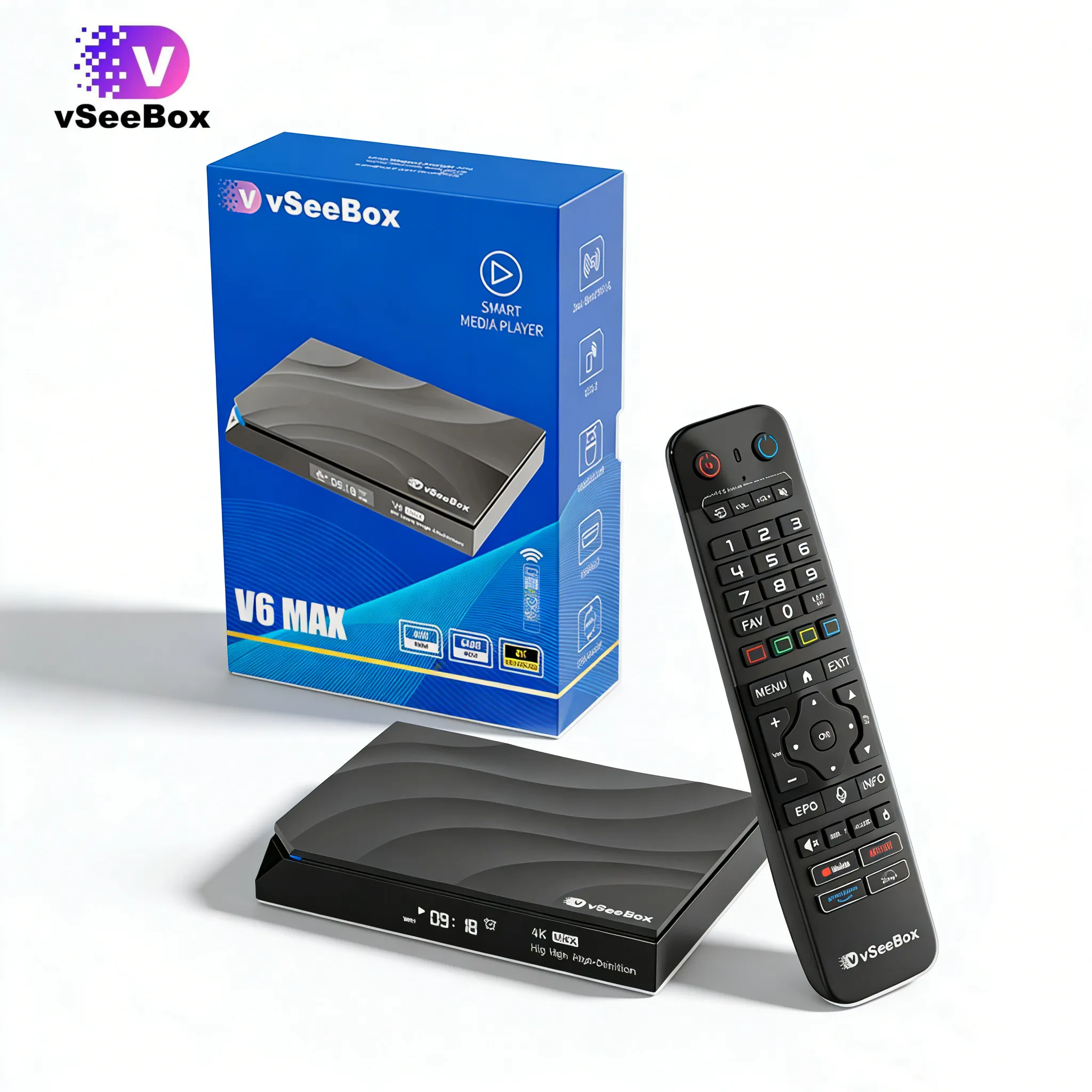
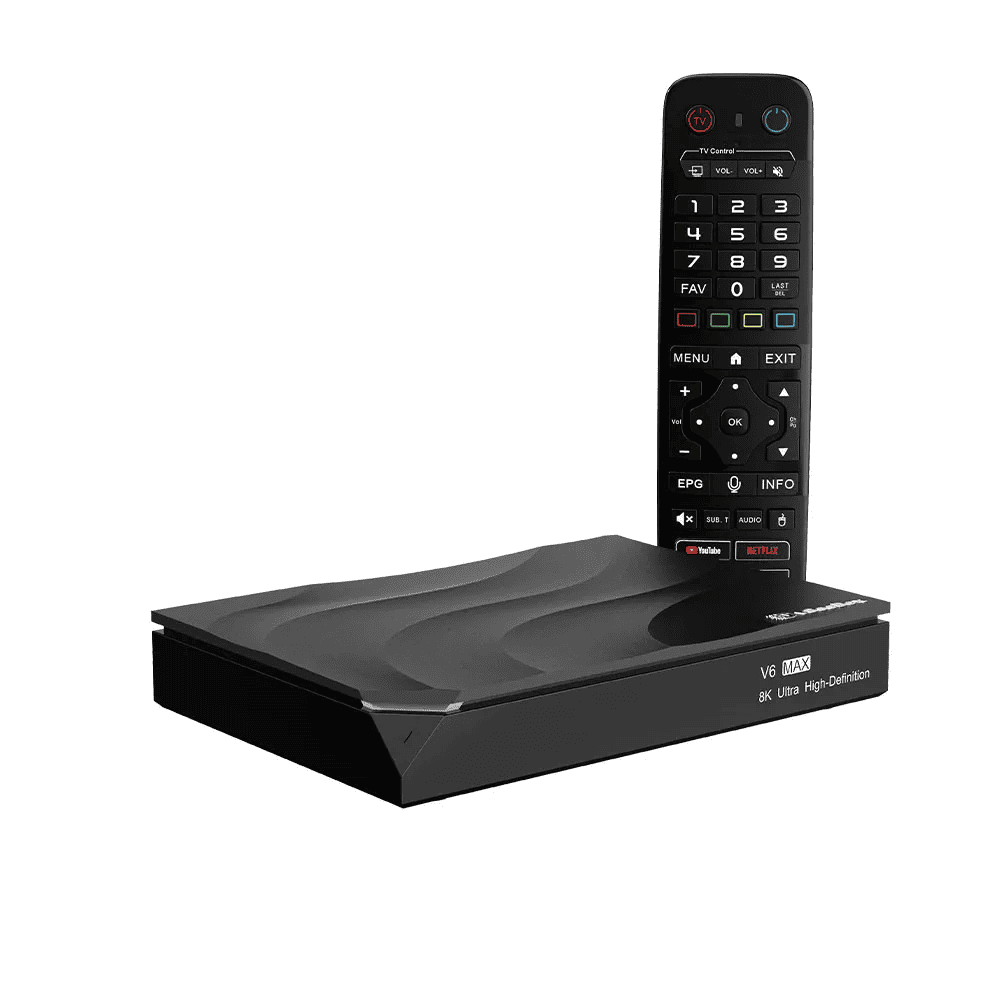
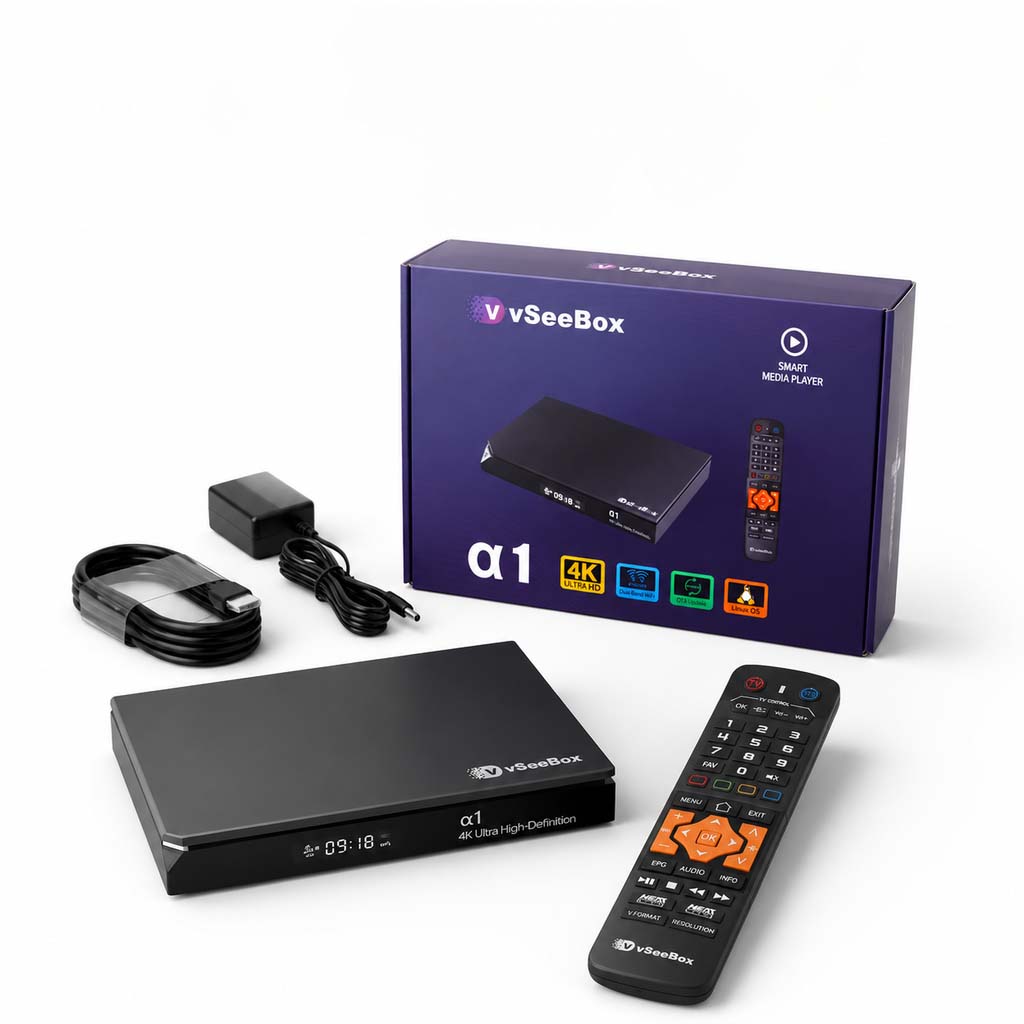
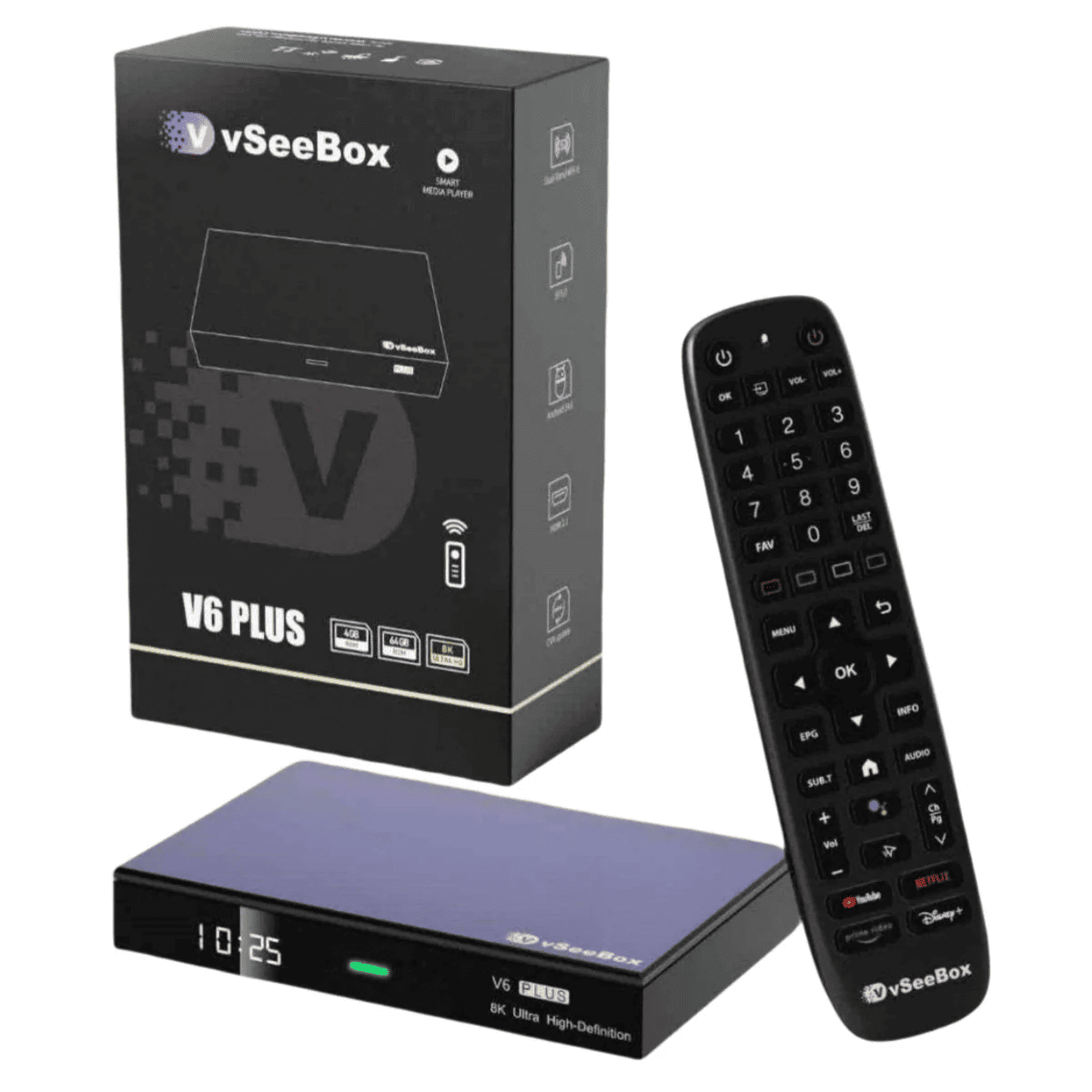
A standard VSeeBox package usually contains:
VSeeBox main unit
Bluetooth remote control
Wi-Fi antenna
HDMI 2.0 cable
Power adapter
User manual
Some models may vary slightly depending on the version, but the basic setup process remains the same.
For newer flagship models like VSeeBox V6 Plus, the hardware supports stronger performance, true 8K output, Bluetooth voice control, and better long-term stability for premium home entertainment.
If you want to understand the full system behind the hardware, read:
Step One: Connect the Hardware
The first setup begins with the physical connection.
Start by connecting the power adapter to the VSeeBox.
Next, use the included HDMI cable to connect the box to your monitor.
If your display uses an older AV port, you can use an AV cable instead.
Then, install the Wi-Fi antenna by attaching it to the back of the device.
This helps improve wireless signal stability, especially in larger homes.
After that, insert two AAA batteries into the Bluetooth remote control.
If you prefer a wired internet connection for stronger network stability, connect an Ethernet cable directly from your router to the box.
For many users, Ethernet creates a much smoother experience than relying only on Wi-Fi—especially for larger televisions and long-term daily use.
Step Two: Wait for System Initialization
After powering on the device, the system will begin its first initialization process.
This usually takes a short time.
Do not disconnect the power during this stage.
The system is preparing the Android platform and loading the initial setup wizard.
Once the loading process is complete, the screen will automatically move to the next step.
This is where the real setup begins.
If your device freezes during startup or stays on the boot logo for too long, do not worry.
You can use this recovery guide:
How to Fix VSeeBox Stuck on Boot Screen | System Recovery Guide
This helps solve the most common startup issues safely.
Step Three: Pair the Bluetooth Remote
This is one of the most important steps.
To pair the Bluetooth remote, press and hold both the OK button and the VOL– button at the same time.
Keep holding until the red indicator light starts flashing.
Once the pairing is successful, the screen will show:
“Remote control connected successfully”
The system will then automatically move to the next screen.
A properly paired Bluetooth remote creates a much smoother experience than traditional infrared remotes.
Faster response, easier voice control, and better navigation make a major difference during everyday use.
Many users discover useful features they missed during the first setup.
Step Four: Select Language and Display Settings
Next, choose your preferred system language.
After selecting your language, press the right arrow button to continue.
The next screen will ask you to select display options.
This controls your screen resolution and refresh rate.
For most users, choosing the highest supported refresh rate creates the best viewing experience.
When the refresh rate is higher, motion feels smoother—especially during sports, live events, and larger-screen viewing.
This becomes even more noticeable on VSeeBox V6 Plus, where true 8K output creates a much stronger visual upgrade for premium home entertainment.
Step Five: Adjust Screen Ratio
After display settings, the system will guide you to adjust the screen ratio.
This step makes sure the image fits your television correctly without stretching or cutting off the edges.
Take a few moments here.
A properly adjusted screen ratio creates a cleaner viewing experience and avoids many common complaints users notice later.
Once finished, press the right arrow button to continue.
Step Six: Select Time Zone
Now choose your correct time zone.
This helps the system display accurate local time and improves scheduling for updates and system functions.
For users in the United States and Canada, selecting the correct regional time zone helps avoid unnecessary confusion later.
After choosing your time zone, continue to the network setup.
Step Seven: Connect to the Internet
Internet connection is where overall performance really begins.
Even the best Android box depends on a stable network.
You can choose either Ethernet or Wi-Fi.
Both work well, but Ethernet is usually the stronger long-term choice for stable playback.
If using Ethernet, connect the cable from your router directly to the box.
Once connected, the X mark beside the Ethernet option will disappear.
Press the right arrow to complete setup.
If using Wi-Fi, select the Wi-Fi option and choose your home network.
Enter your password carefully.
If the password is correct, the system will show “Connected.”
If it shows “Remembered,” the password is incorrect.
In that case, forget the network and enter the password again.
After successful connection, return to the network screen.
Once the X mark disappears beside the Wi-Fi icon, press the right arrow to finish setup.
This solves the most common Wi-Fi and Ethernet problems quickly.
Common First-Time Setup Mistakes
Most setup problems are simple and easy to fix.
The most common mistakes include weak Wi-Fi placement, incorrect password entry, forgetting to pair the Bluetooth remote, and choosing the wrong display settings.
Many users think the box has a problem when the real issue is simply router distance or incorrect setup.
This is why proper first installation matters so much.
A few extra minutes during setup saves months of frustration later.
Most buyers do not regret choosing the better device.
They regret rushing the setup process.
Final Thoughts
Setting up VSeeBox is much easier than most first-time buyers expect.
There are no complicated installations, no monthly cable setup problems, and no long waiting periods.
Once connected correctly, VSeeBox creates a smoother, faster, and more reliable home entertainment experience built for daily use.
Better picture quality.
Stronger system stability.
Faster remote response.
Less frustration.
That is what users remember most.
The best box is not the one with the most features.
It is the one that works smoothly every day.
And that is exactly where VSeeBox stands out.
Written by the vSeeBox team, this article is part of our ongoing effort to provide practical setup guides, viewing tips, and Android entertainment insights for North American users.
.jpg?w=2048&h=2048)
-0.jpg?w=2048&h=2048)